Posts

Build a Custom Gravity Falls Theme PC using AMD Ryzen 7 3700x

Image
I'll do it next week - this video was supposed to be released at the time of the build (which was the week the Ryzen was released) however I have only just got around to the finished edits on the video so here it is better late than never (maybe). So I have missed the boat on getting this video out on release week for the Ryzen 7 3700x, 3800x and Ryzen 9 3900x which helps get the video some traction, however, I really like how this PC one turned out so here it is. How to build an AMD Ryzen 7 PC with an AMD X570 Motherboard using RGB lighting and some graphics to create a Gravity Falls themed PC build. The video shows the parts of interest of the build and also which bits of software to use to control the RGB lighting to make the Theme pop.
Image
In this video, I show you how to remove items from photographs using powerful tools that are built into Affinity Photo as standard. Inpainting that is built into Affinity Photo is a powerful removal tool. It works by sampling a section of the photo you are working on and the surrounding areas, it can then remove unwanted elements from photographs and images such as dust spots, people, vehicles, lens flare etc.
Image
So the NEST Hello has just been released in the UK starting delivery 11th June 2018, which is great but we are currently not getting a full picture on installing the Hello and its ancillary equipment requirements. Now it might prove that Google (Nest) supply the extra bits that we need (but I doubt it - going off other countries experience) So what do we need: Nest Hello (Obviously) Suitable bell wire Door chime  Bell transformer Din Rail Enclosure Ancillary bits depending on how you install. So whats the problem ? All standard kit I hear you say. According to Nest Hello website the doorbell needs: Power requirements - Requires a 16 V AC – 24 V AC, 8 VA transformer, chime and a wired doorbell. The Problem being is we can source 24v Bell transformer (British General) but cannot get a 24v door chime. Or we can source a 16v door chime (Friedland / Honeywell) but we have been struggling to find a 16v Transformer. Also to note here is that I spoke...

Create a Subscribe Link on your Youtube Channel

Image

How to view blanked out Passwords in Safari on your Mac.

Image
In this short video, I show you how to access all your hidden passwords that are stored in Safari on your Mac computer. Sometimes we ask Safari to save a commonly used password on our Mac maybe for webmail, maybe for a shopping website this is great for ease of use whilst using the same computer but when you want to access a password locked account on another computer or Mac then remembering the password might be a problem. That is where this tip is really great as it gives you access to all the stored passwords in your Safari browser. This can be very helpful if the password stored is a long computer-generated password that was created and stored on your Mac. Follow this short video to learn how to access the passwords. Don't forget to like and subscribe to my channel for more great tips.

Access secret games and programs built into the Mac

Image
Your Mac contains multiple hidden games, including a few retro classic games. The games that you can access range from some of the more well known games like Tetris and Pong to Dunnet (A simple text based adventure game). The hidden games area also has a built in Psychiatrist (Doctor) which is a version of the Eliza program created in the 1960's at MIT where you can have a simulated therapy session. The secret / hidden games are accessed through the Terminal command on your Mac and started by typing in the name of the game like pong or doctor. Some of the games / programs are very quirky and really don't make much sense but others are intriguing. 1: Open terminal 2: Type: emacs 3: Push: esc (Escape Key) 4: Push: x 5: Type the game name to play the game: e.g. pong, doctor, tetris, snake, solitaire, 5x5, animate, blackbox, cookie1, decipher, dissociate, dunnet, fortune, gamegrid, gametree, gomoku, handwrite, hanoi, landmark, life, meese, morse, mpuz, spook, study, yow and...

How To: Set default programs in Windows 10

Image
In this video I show you how to set and change the way Windows 10 handles file extensions to open default programs, so basically the video goes through changing your default global programs that Microsoft sets to open set program types. Also, the video covers how to change the default programs that are activated by clicking on a particular file extension. If you don't like they way Microsoft Edge browser opens over time you click on a PDF, or simply want to change your default mp3 player then this tutorial video in the one.

Change the Mac default web Browser from Safari to a browser of your choice.

Image
This video shows you how to change your Mac's default web browser from Safari to a web browser of your choice. The video also has a bonus end section showing how to set the home page and more in Safari if you wish to have that as the default web browser.

How To - Change Windows 10 web browser's home page.

Image
In this short video, I show you how to quickly change and set the default home page in Microsoft 10 web browser Edge. By first opening the Edge browser and then going into settings in the top right-hand corner (the 3 dots) you then can select the option that allows you to set your home page. Once you have entered and saved the web address you want as the home page close the browser and reopen to test if all is OK.
Image
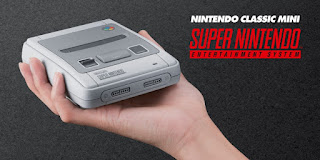
All we can say is WOW Nintendo has just announced another Nintendo Classic Mini: Super Nintendo Entertainment System, launching across Europe on September 29th. The Nintendo Classic Mini: Super Nintendo Entertainment System contains 21 classic games. Contra III: The Alien Wars™ Donkey Kong Country™ EarthBound™ Final Fantasy III F-ZERO™ Kirby™ Super Star Kirby’s Dream Course™ The Legend of Zelda™: A Link to the Past™ Mega Man® X Secret of Mana Star Fox™ Star Fox™ 2 Street Fighter® II Turbo: Hyper Fighting Super Castlevania IV™ Super Ghouls ’n Ghosts® Super Mario Kart™ Super Mario RPG: Legend of the Seven Stars™ Super Mario World™ Super Metroid™ Super Punch-Out!!™ Yoshi’s Island™ So what you get for your £80 apart from all these games and a (small) SNES. Included with the Nintendo Classic Mini: Super Nintendo Entertainment System are one HDMI cable, one USB power cable* and two wired Super NES Classic Controllers, perfect for players to dive into multiplayer action right a...

New XBOX One X (Scorpio), Release date and key specs

Image
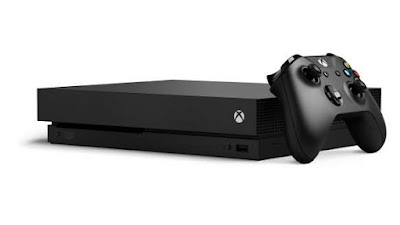
Full specs and release dates have finally been released by Microsoft this month at E3. With a Worldwide release date of November 7 this year (2017) we cant wait. So what do we have for the most powerful console ever released: Power, Release Date: Worldwide November 7, 2017. CPU Speed: 6 Teraflops GPU, Clocked at 1.172 Ghz Memory: 12gb of GDDR5 Memory Bandwidth: 326 GB/s True 4K Resolution 8+ Million pixels HDR Wide Colour Gamut Premium Dolby Atmos Sound 4K UHD Blu-ray playback Super sampling for 1080p TV's Backward Compatibility: All Xbox One accessories and games will be backward compatible, all games upsampled with multiple enhancements. Processor: 16nm (360mm square) 7 Billion transistors, 384 bit wide memory bus. Cooling: Liquid cooled vapour chamber. PSU: Bespoke Power Supply named after the initial designer. Physical size: Smallest Xbox ever. XBOX Official video here: • Xbox One X 1TB console • Xbox Wireless Controller • HDMI cable (4K ...

Tips and Tricks for Nintendo Switch Pro Controller.

Image
Tips and tricks for getting the most from your new Nintendo Switch using a Pro controller. Before using your Nintendo Pro controller fully charge for 6 hrs this should give a full charge which will last approx 40 hrs. In the video i show how to boost you play time by using the USB cable provided, this can be used with a powerbank or plugged into a computer to keep your switch main unit charged. The video also shows how to use the Pro Controller as a NFC reader, also easily sync or pair your controller with the cable provided. And finally we show you how to shut down your Nintendo Switch using the Pro controller.

How To - Connect and use a Nintendo Pro Switch controller on a Mac comp...

Image
In this video i show you how to connect your Nintendo Switch Pro controller to your Mac computer. Thankfully, it’s a straightforward process to connect your Switch controllers to your Mac. In fact, it’s the same as if you were pairing any other Bluetooth accessory, from a keyboard to a pair of wireless headphones. At the end of the video I show you a quick game clip being played with the controller. For those that are unsure how to do this please follow the video. The steps in the video are shown below: Open System Preferences and select Bluetooth. Make sure that the Switch console itself is off. On the Pro controller you want to pair to your Mac, press and hold the small pairing button on the top of the controller until the lights flash quickly. On your Mac, you should see the Pro controller appear on your list of Bluetooth devices. Click Pair to pair the controller to your Mac. Once the connection is successful, you’re free to play your favourite games using your Joy-Con cont...

HOW TO - Connect Nintendo Switch Pro Controller to Windows 10 PC

Image
Quick tutorial on how to connect your Nintendo Switch controller to your Windows 10 PC. It allows you to play windows games and Steam games via the Nintendo Pro controller wireless by connecting by Bluetooth. Windows recognises the controller as a Input device and even lists the Pro controller correctly in your bluetooth device list.  
Image
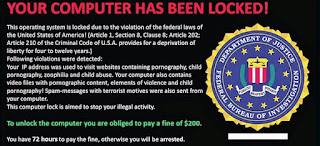
A massive ransomware campaign has attacked a number of organisations around the world, with reports of infections in more than 70 countries. Although a ransomware attack on this scale is relatively unheard of, it is not a new a attack method and has been effecting business and home users alike for over 12 months. If you have a machine that is set to automatically update and is running a current operating system (like windows 7, 8 or 10) then you should be ok as a patch was released by Microsoft early this year.
Image
How to access system Bios on a Toshiba Satellite Pro C660. Are you struggling to gain access to your Toshiba laptop Bios ? Your laptop probably has fast boot enabled and is simply skipping the initial splash screen that advises how to access the Bio. Any sign off how to access the Bios when you push the start button are not shown when starting up. The way to access the bios is quite simple but has to be followed EXACTLY or you will simple boot to the os. Make sure machine has been shut down completly. Hold F2 key down. Push start / power button whilst still holding F2. IMPORTANT - When the Toshiba logo is shown you must release the F2 key if the Toshiba logo disappears before you release F2 the machine will simple boot into the Operating system.  Now you have access to the BIOS. Once you have disabled fast boot when you restart your laptop the initial screen should look like this clearly showing options for accessing the Bios F2 (SETUP) or F12 for Boot Menu. ...

How to install a fast SSD into your Mac

Image
In this video I show in detail how to access your iMac's hard drive, remove the old hard drive and mount the new SSD inside, once you have finished you will have a up-to date Mac running super fast. The video shows correct tools to use with dimensions shown for removing glass screen correct tools and precautions to take when spitting into the inside of your mac. The detailed video shows how to carefully remove the fixing tape that holds the screen to the base and what to be careful of when removing the LCD.

How to access Windows 10 Secret Menu.

Image
How This Hack Works GodMode works by combining two of Windows' hidden features. The first is a secret file-system folder that Windows uses as the source folder for all Control Panel items. The second is the operating system's ability to turn a Windows file system folder into something called a ‘virtual junction point' by using its globally unique identifier (GUID) - the long number in the folder name you just typed - as an extension. In very basic terms, the folder you create on your desktop acts as a shortcut, with the GUID part of the folder name directing you towards the secret Control Panel source folder. What you get when you open the shortcut is direct access to an unfiltered list of every Control Panel item, sorted by category. It's not restricted by the standard Control Panel's way of arranging items, which can sometimes make specific tools and tasks difficult to find.

How to easily record your iPhone screen on your Mac for FREE

Image
This video shows you how to capture and record your iphone screen on your Mac for free using built in programs. The tutorial is short and teaches you how easy it is to record your iPhone gestures, capture game play or just record video direct from your iPhone screen.

Lenovo E531 Keyboard Removal and Refit, Full detailed video.

Image